Jobs Manager
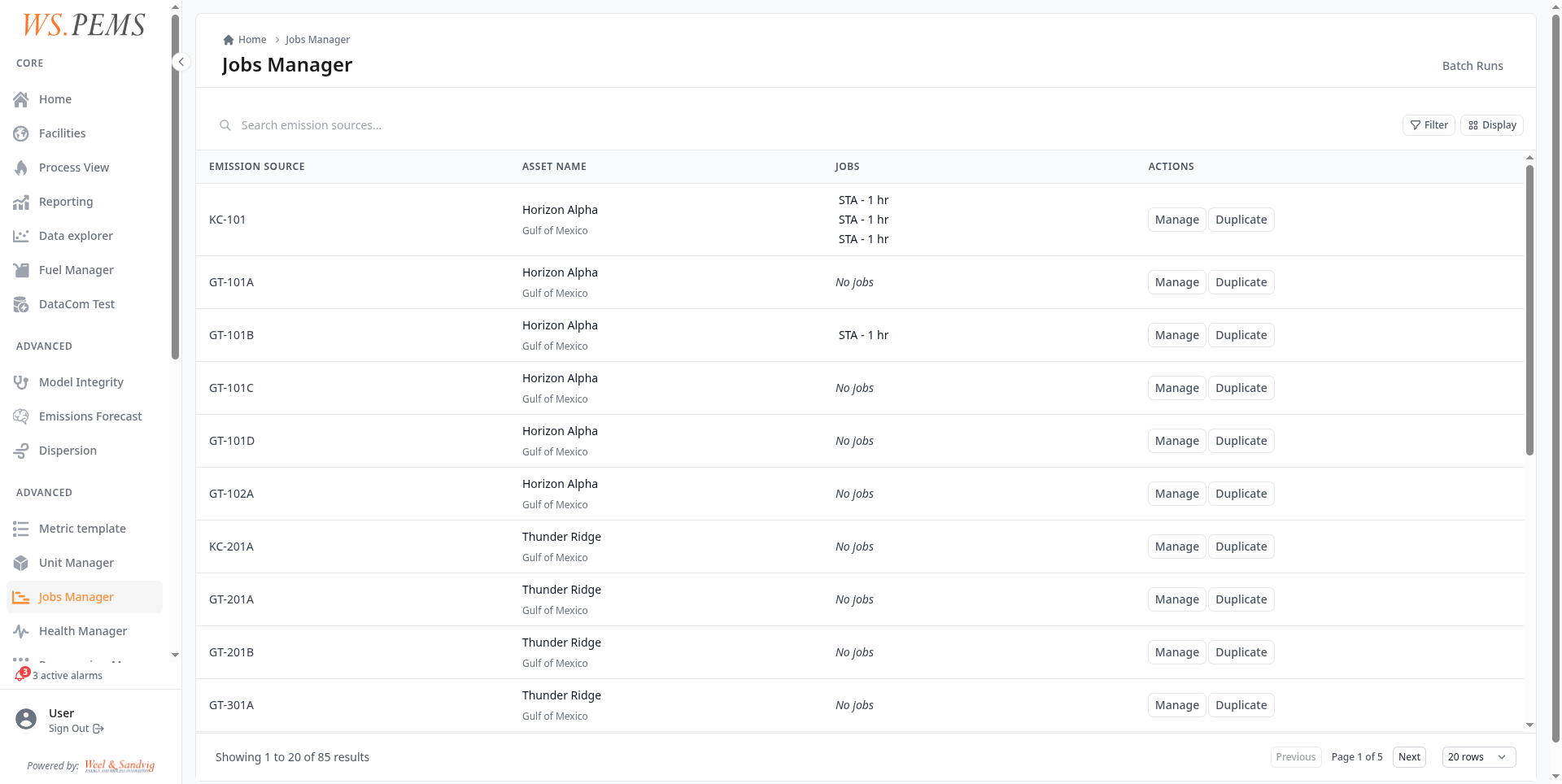
Open Data jobs to manage the scheduled averaging jobs of your emission sources. These jobs calculate the short-term averages (STA) and the long-term averages (LTA) from the measurement data. To calculate a past period again, open Batch Run Manager.
Before you start
- You must have the
Adminrole or higher. See Find a screen. - Reporting periods and emission limits explains what the jobs calculate and when they run.
Each row in the Jobs Manager is one emission source. The list shows which sources have active jobs and which type of jobs they run.
Which batch run do I need?
The Jobs Manager and the Pipeline Manager both have batch runs. They calculate different things:
| Aspect | Pipeline Batch Run | Jobs Batch Run |
|---|---|---|
| What it reprocesses | Raw data collection and model calculations | STA/LTA averaging computations |
| When to use | After model changes, data source corrections | After raw data corrections, new job setup |
| Scope | One pipeline at a time | Multiple STA jobs simultaneously |
| Downstream effect | Produces new first-level data that jobs then consume | Recalculates averages from existing first-level data |
To correct a past period, first run a pipeline batch to make the first-level data again. Then run a jobs batch to calculate the averages again from the corrected data.
Manage the jobs of an emission source
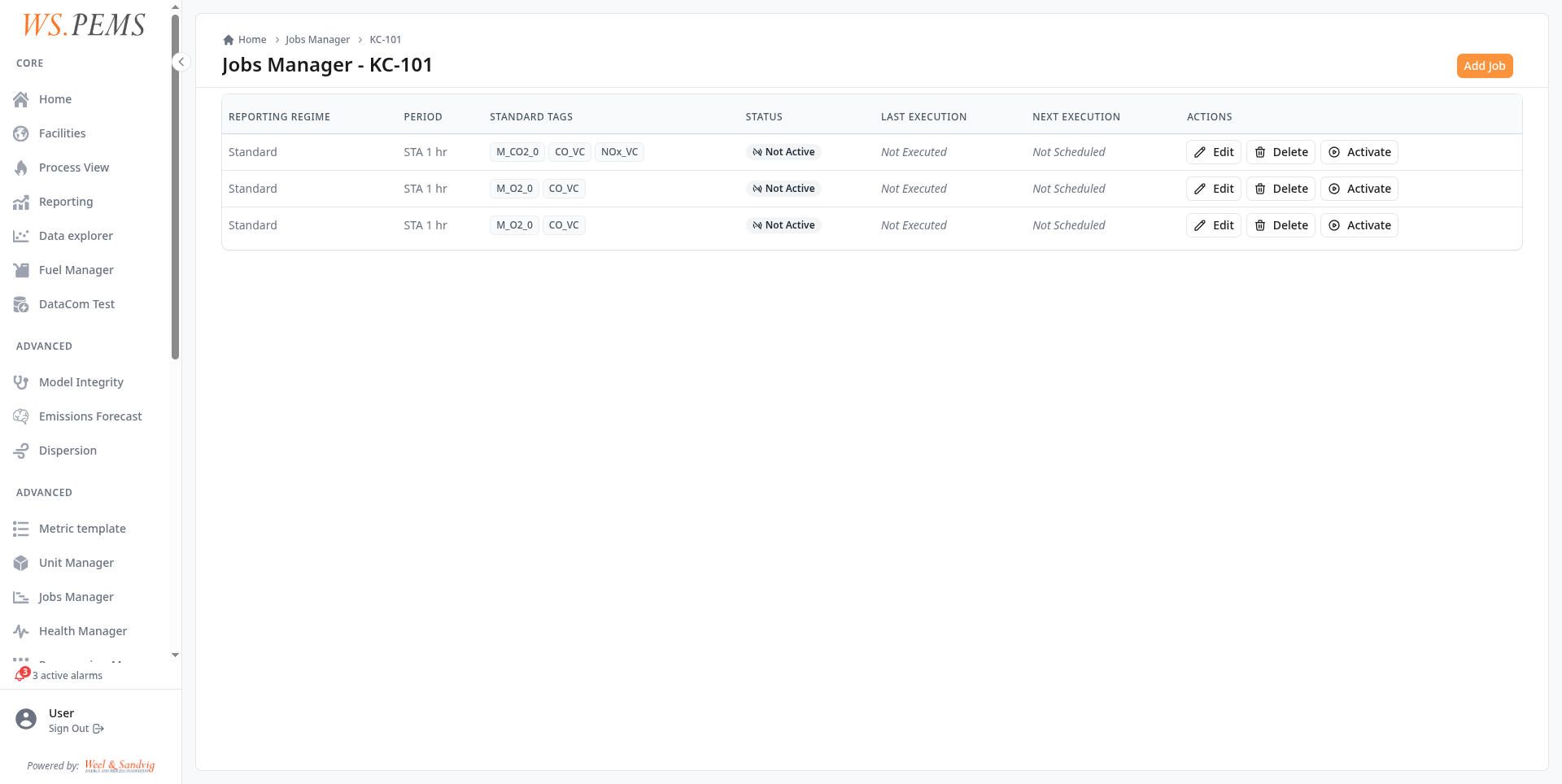
- In the Jobs Manager list, click Manage on the emission source.
- Read the list of its jobs. For each job, the list shows:
- Reporting Regime: the compliance standard that sets the calculation rules.
- Period: the job interval, for example "STA 1 hr" for hourly short-term averages.
- Standard Tags: the measurement tags that the job monitors, for example M_CO2_0, CO_VC and NOx_VC.
- Status: whether the job is active and scheduled.
- Last / Next Execution: when the job last ran and when it will run next.
- To change a job, click Edit. To remove it, click Delete and confirm.
- To stop the schedule of a job, click Deactivate. To start it again, click Activate.
Batch Run Manager
Jobs normally run on their schedule and process only the latest interval. A batch run is a manual, one-time calculation of a past date range.
Common reasons to run a batch:
- Data corrections: the raw measurement data was corrected, and the averages must be calculated again.
- Backfilling: you made a new job, and the past averages must be calculated.
- Configuration changes: you changed job parameters, and you want to see the effect on a past period.
- Recovery: job executions were missed, for example during system downtime.
Start a batch run
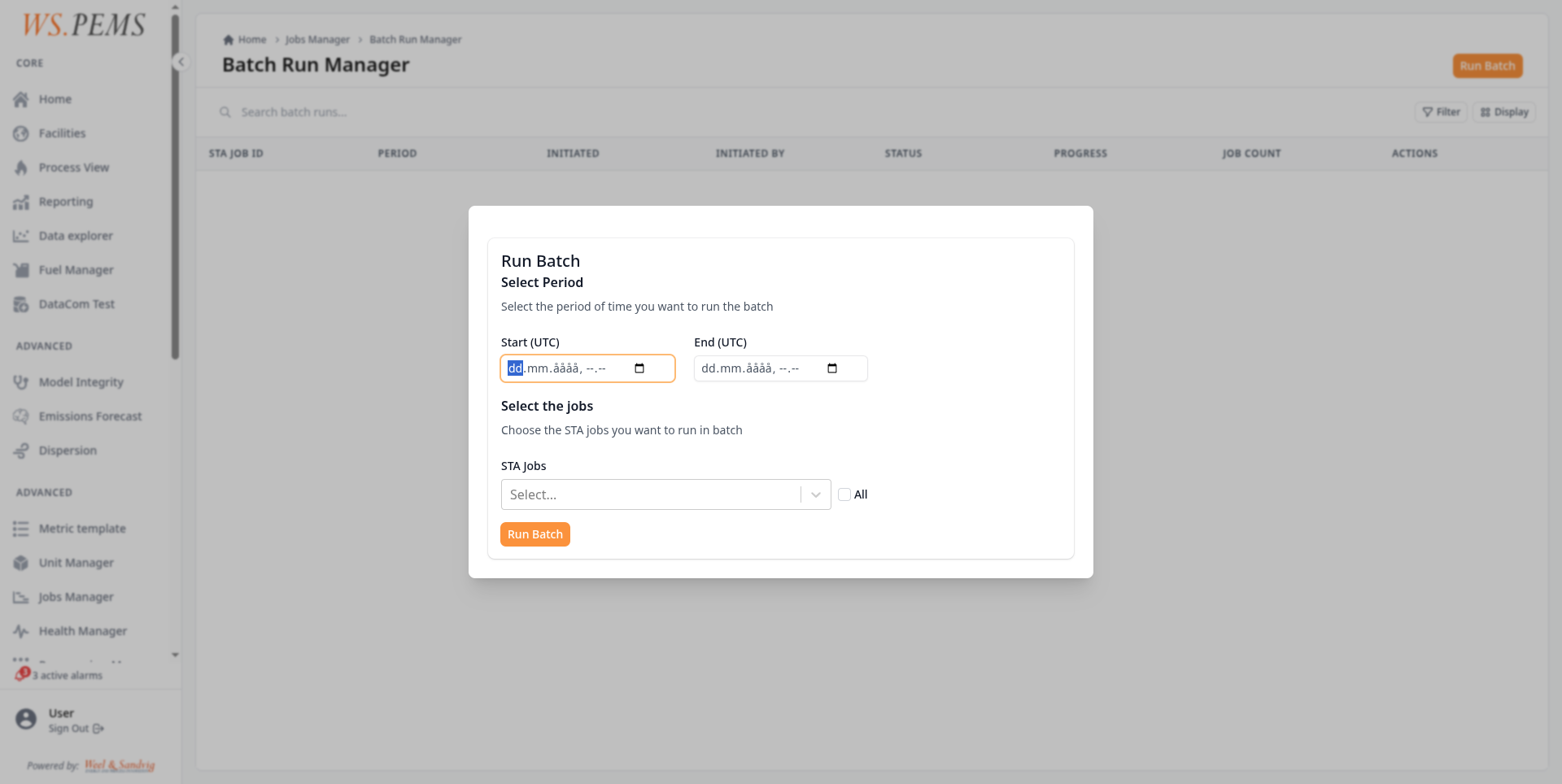
- In the Jobs Manager header, click Batch Run Manager.
- Click Run Batch. The batch run form opens.
- In Select Period, select the start and end dates (UTC) of the period to calculate again.
- In Select Jobs, select the STA jobs to include. You can select more than one job to calculate them all over the same period.
- Click Run Batch.
The batch run starts as a background job. Its progress shows in the batch run list.
The batch run replaces the STA, SSTA, VSTA and LTA values that were calculated before for the selected period.
Find a batch run
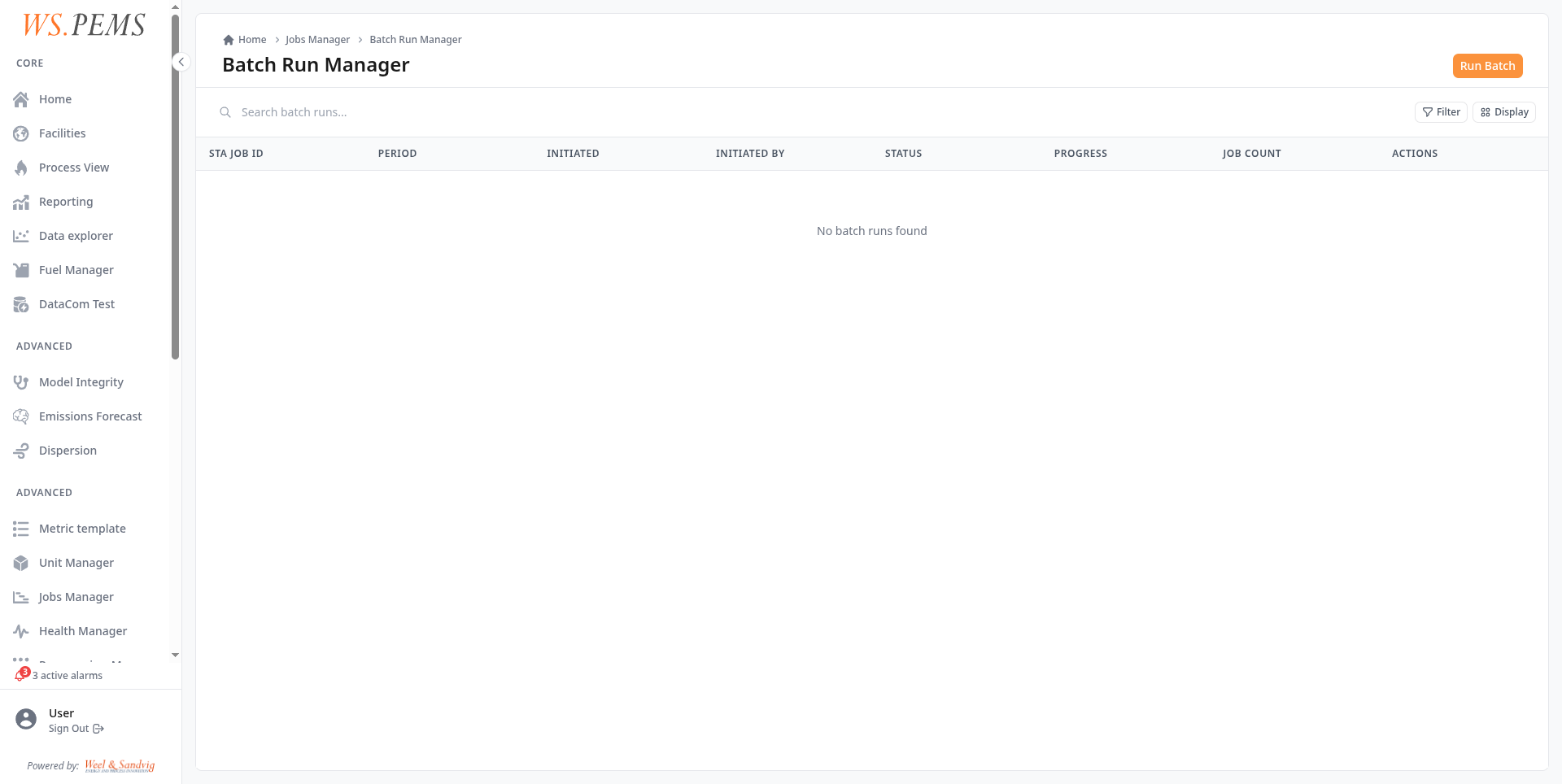
The Batch Run Manager list shows all batch runs with these columns:
| Column | Description |
|---|---|
| Emission Source | The emission source of the jobs in the run |
| Period (UTC) | The date range that was reprocessed |
| Initiated | When the batch run was started |
| Initiated By | Which user triggered the run |
| Status | Not Started, In Progress, Completed, Failed, or Cancelled |
| Progress | Percentage complete (0 to 100%), averaged across all jobs in the run |
| Actions | Details and the Row actions menu |
Use the filters to filter by Status or Initiated By. Use the search field to find a run.
Read the batch run details
Click Details on a batch run to open its detail page. The page shows these parts:
- Header: the emission source, the status and the progress of the run. While the run waits or runs, a Cancel button shows. After the run stops, a Rerun button starts a new run with the same jobs and period.
- Period and initiator: the period of the run and the user who started it.
- Status summary: the result of the run, for example "Completed" or "Completed with failures". While the run is in progress, it shows the processed intervals and the estimated time that remains. After the run, it shows the duration.
- Lineage: the number of STA, SSTA, VSTA and LTA values that the run produced. Arrows show each step between them: O₂ correction, uncertainty deduction and daily aggregate.
- Outputs: one row for each emission source. Expand a source to see one row for each kind of value. Each row shows coverage, the number of values produced and the job status. Expand a row to see a chart of its values. Use the kind buttons and the Failed button to filter the rows.
- Issues: shows only when there is a problem. It lists the failed intervals, grouped by reason. It also lists values that the run deleted but did not calculate again.
While a batch run waits or runs, the page updates its progress automatically. The updates stop when the run is completed, failed or cancelled.
Cancel a running batch run
You can cancel a batch run while it runs, for example when it takes too long or you started it in error.
- Click Cancel on the detail page, or select Cancel in the Row actions menu of the list.
- Confirm in the dialog.
Cancellation can take time. A job finishes its current interval before it stops.
Jobs that have already completed or failed keep their status. This keeps the audit trail of what ran before the cancellation. The run and its other jobs are marked Cancelled.
Values already calculated stay stored. Cancelling the run does not restore the values that the run replaced.
Delete a batch run
To delete a batch run, select Delete in the Row actions menu. A confirmation dialog shows before deletion.
- Not Started: the system cancels the queued jobs, then deletes the record.
- In Progress: you cannot delete the run. Cancel it first, then delete it.
- Completed, Failed or Cancelled: the system deletes the record. The calculated STA and LTA values do not change.
Run a batch run again
Select Re-execute in the Row actions menu. This starts a new batch run with the same jobs and the same period.
Common problems
| Problem | What to do |
|---|---|
| The status summary says "Completed with failures". | Open the Issues part of the detail page. It lists the failed intervals, grouped by reason. |
| You cannot delete a batch run. | The run is in progress. Cancel it first, then delete it. |
| The averages are still wrong after a batch run. | If the first-level data was wrong, run a pipeline batch first. See Which batch run do I need? |