Pipeline Manager
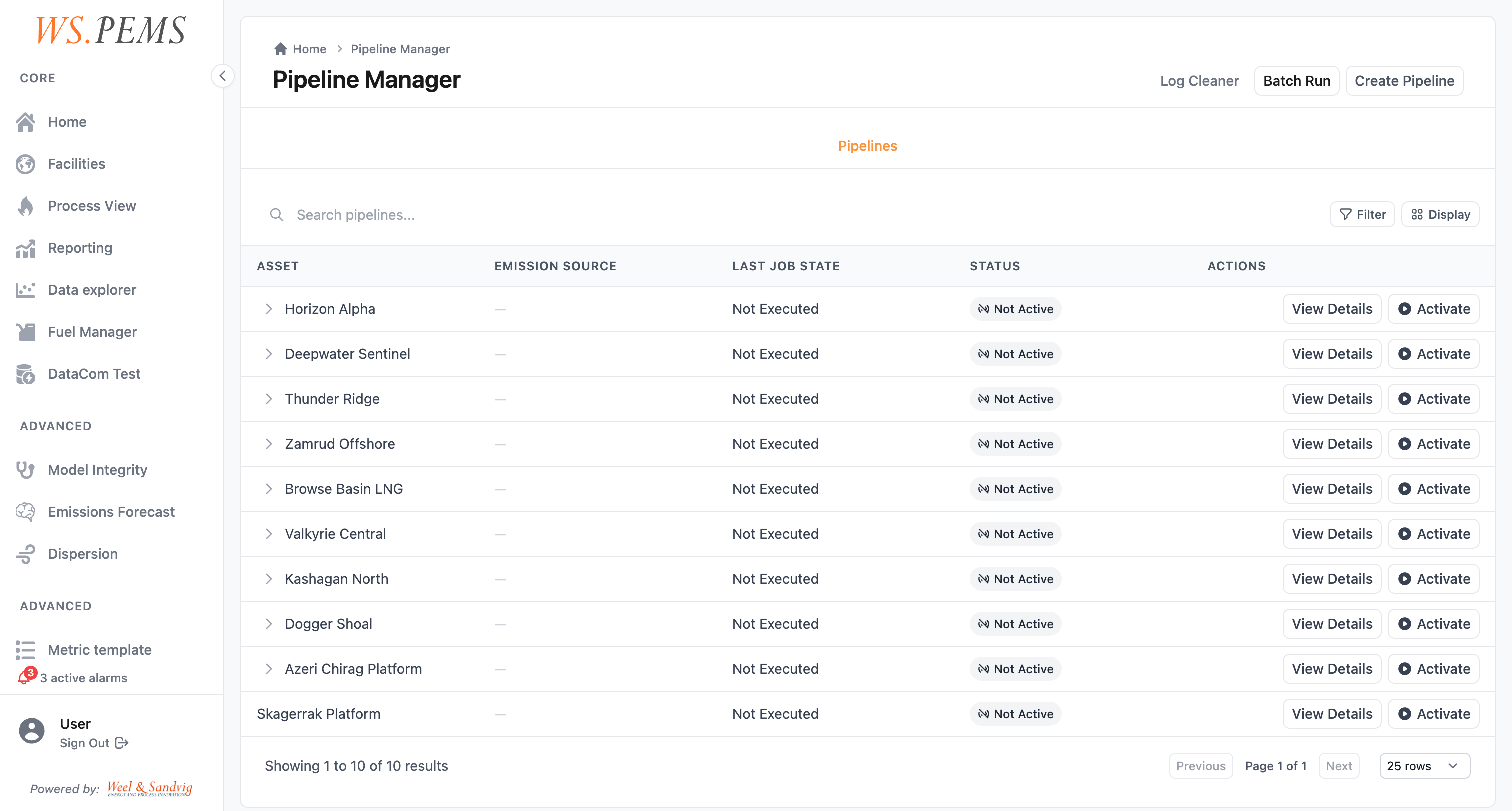
The Pipeline Manager is the screen where you set up the data processing pipelines and follow their runs. To open it, click Data pipelines in the Models & calibration group of the menu.
A pipeline is an automated sequence of processing steps that runs on a schedule. Pipelines do the continuous emissions monitoring in WS.PEMS. They collect raw sensor data, run it through the calculation models, and make new emission values on a schedule.
Before you start
- You must have the
SuperAdminrole. - The model step uses the configuration in the Model Manager. Set up the model first.
Follow the pipeline runs
- In the pipeline list, click View Details on the pipeline.
- Click Show Run History.
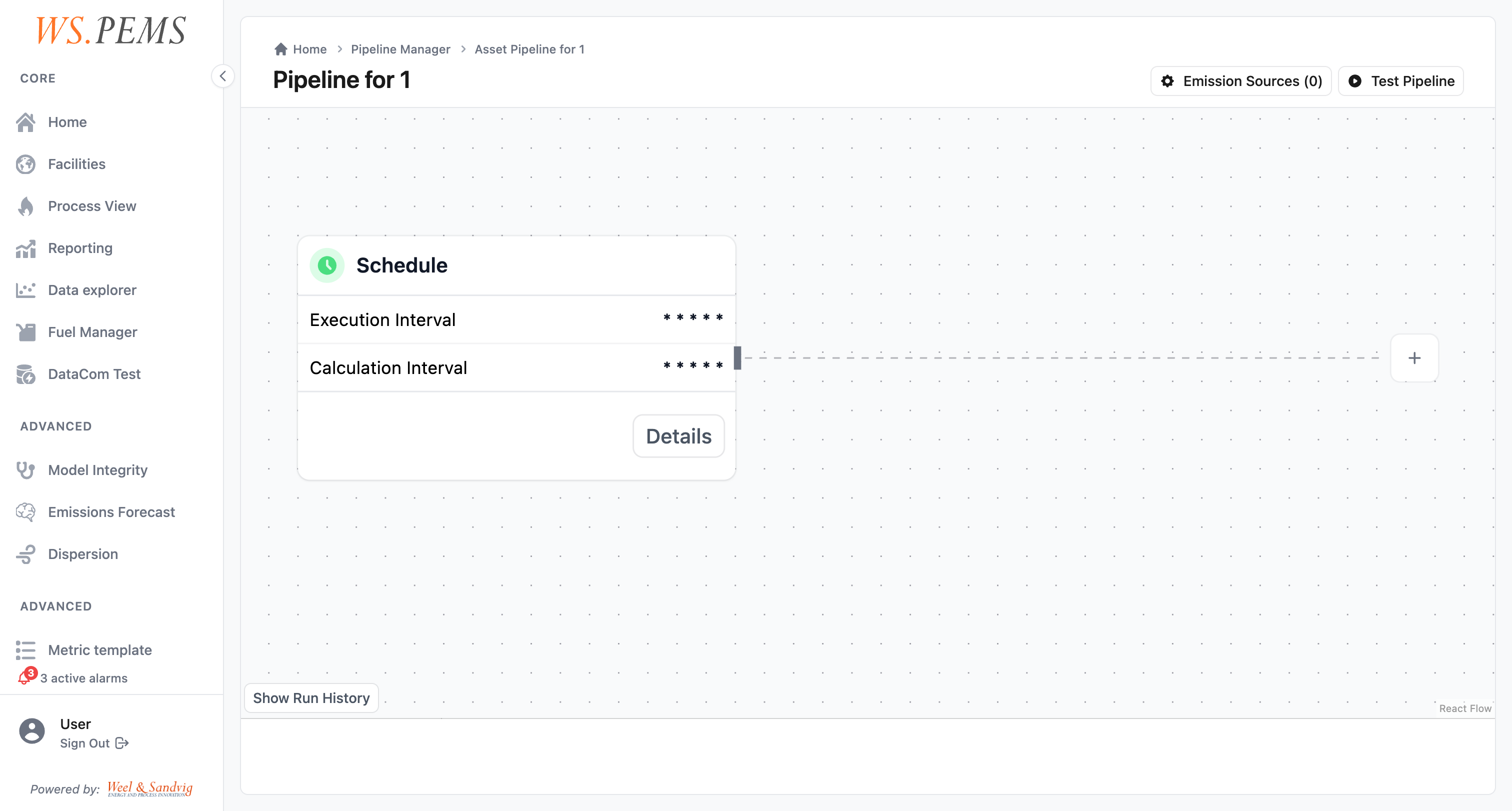
The system records every pipeline execution. For each run you can see:
- Overall status: whether the run completed, failed, or was skipped.
- Per-step status: the state of each step: Not Started, Running, Completed, Failed, or Skipped.
- Step inputs and outputs: the data values that went into and out of each step.
- Timestamps: when the run started and finished.
Use the run history to find the cause of a failure. You can also confirm that data flows correctly and that the pipeline makes values on schedule.
Activate a pipeline
- In the pipeline list, find the pipeline. The Status column shows if it is active.
- Click Activate.
The pipeline starts its scheduled execution immediately.
You can deactivate a pipeline without deleting it. A deactivated pipeline keeps all its configuration, but it does not run on its schedule. Use this during maintenance, equipment shut-downs or troubleshooting.
Test a pipeline
Test a new or changed pipeline before you activate it in production. Test mode lets you supply simulated input values and see how the pipeline processes them. Test mode does not store the results in the database.
A Data Writer step still runs in test mode. It can send values to the data server of the plant. To prevent this, test only when the emission source has no write-back tags.
- In the pipeline list, click Test on an emission source pipeline. Or click Test Pipeline on the detail page.
- Supply the simulated input values and run the test.
- Examine the outputs of each step.
Use test mode to:
- Verify that a new model configuration produces expected outputs.
- Check that the step order and the data flow are correct.
- Confirm the behavior when input values are at the boundary of the expected ranges.
Calculate a past period again
Run the pipeline in batch mode to calculate a past period again. Do this after you correct model parameters or fuel data. To calculate the averages again after that, see Which batch run do I need?
- In the Pipeline Manager header, click New Batch Run. Or click Batch Run on the detail page of the pipeline.
- In Select Pipeline, select the pipeline.
- Select the Pipeline steps to run, or select Use all steps.
- In Missing Data, select or clear Create missing first-level data collections. When you clear it, the batch processes only the existing collections.
- In Date Range Configuration, select the period. If necessary, adjust the Start Date, the End Date and the Time Zone.
- Click Start Batch Run.
Batch reprocessing overwrites the values that were calculated before for the selected period. The run history records batch executions separately, so you can see when reprocessing occurred.
Common problems
| Problem | What to do |
|---|---|
| A test sent values to the plant data server. | A Data Writer step runs in test mode. Test only when the emission source has no write-back tags. |
| The data connection was lost, and a period has no values. | On the detail page, read Auto batch run on lost connection. When it is on, the pipeline reprocesses the lost period automatically when the connection is back. When it is off, start a batch run by hand. |
| A run failed. | Open the run history and find the step with the status Failed. Read its inputs and outputs. |
How pipelines work
Pipeline types
Emission source pipeline
Processes data for a single emission source. Each emission source has its own pipeline that runs independently on a configurable interval, for example every 60 seconds.
Use this type when you need fine-grained control over scheduling for individual sources.
Asset pipeline
Processes data for a selected list of emission sources of one asset. An asset pipeline has two cron schedules:
- Execution interval: when the pipeline runs.
- Calculation interval: when the pipeline calculates the emissions. It is the same as the execution interval, or less frequent.
Asset pipelines also have two more options:
- Look-back window: how far back in time the pipeline reads data on each run. Thus the calculation covers a complete data window, also when earlier runs were late.
- Execution delay: a wait before the processing starts. It gives the upstream data sources time to deliver their values.
Use this type to keep all sources in an asset synchronized and to manage dependencies between sources.
Pipeline steps
The steps run in order. Each step receives the outputs of the step before it. The steps are in four categories:
Data Reader
Pulls raw measurement data from external systems. WS.PEMS supports:
- OPC servers: reads live tag values from plant historians or OPC-UA/DA servers
- External APIs: fetches data from third-party data sources
Model
Runs the emissions calculation model configured for the emission source. This is where sensor readings are converted into calculated emissions values. The model step uses the configuration defined in the Model Manager.
Data Writer
Writes calculated values back to a data server of the plant, for example an OPC UA server.
Static
Utility steps that support the pipeline without performing emissions calculations directly. Common helper steps include:
- Run child pipelines: trigger one pipeline from within another, useful for ordered execution
- Handle lost connections: apply fallback behavior when a data source is unavailable
- Compute uncertainty: calculate measurement uncertainty bounds alongside the emissions value