Model Manager
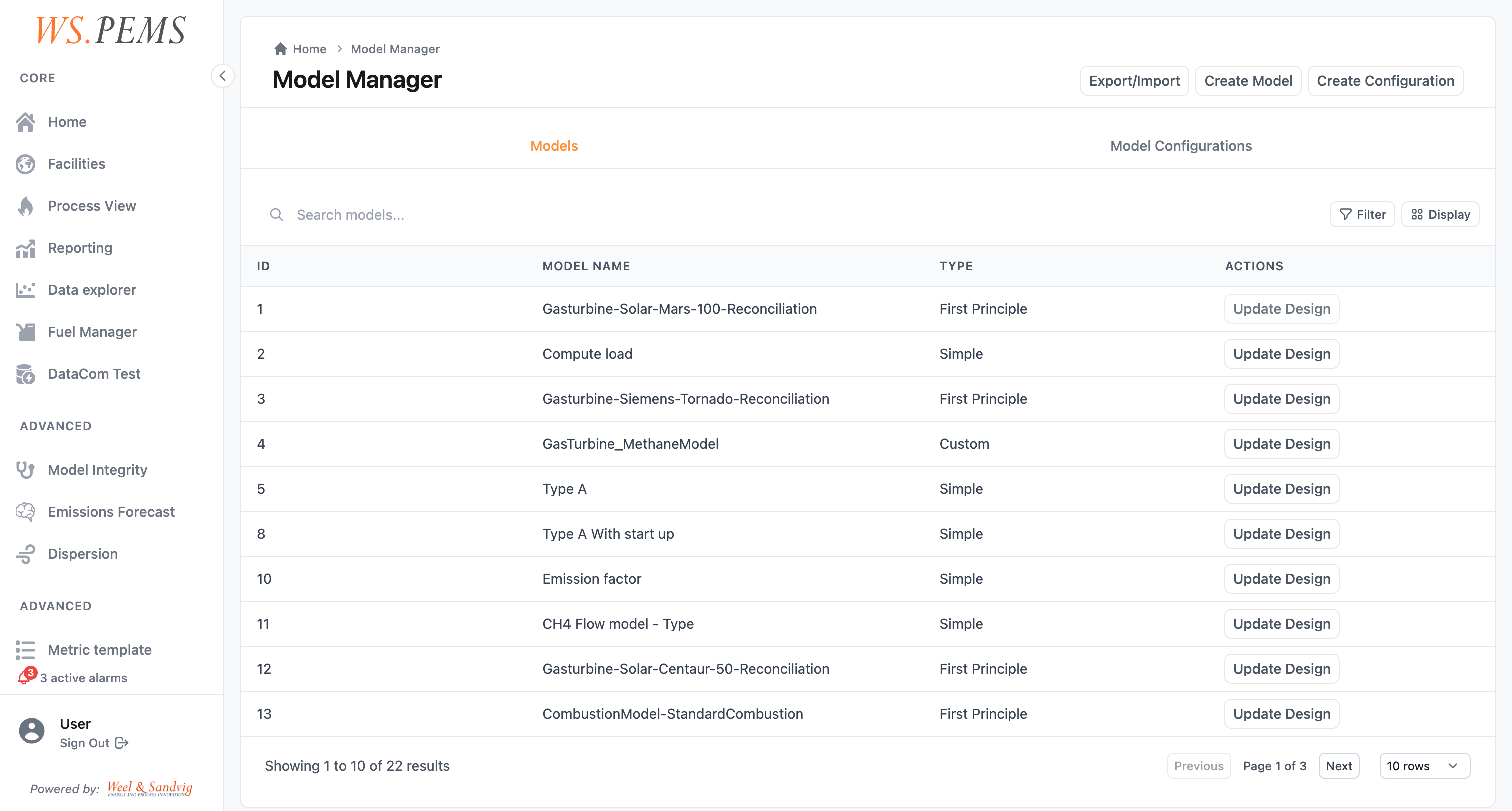
The Model Manager is the screen where you set up and maintain the calculation model of each emission source. To open it, click Models in the Models & calibration group of the menu.
Every emission source in WS.PEMS needs a calculation model. The model changes raw sensor readings into emission values. For example, it turns a temperature reading and a fuel flow measurement into a calculated CO2 output.
Before you start
- You must have the
SuperAdminrole. - The emission source must exist, and its plant tags must be connected. See Administration.
- If the model uses combustion calculations, the fuel must exist. See Fuel Manager.
The Model Manager has two tabs: Models and Model Configurations. A model defines the calculation. A model configuration connects a model to one emission source.
Set up the model of an emission source
Do these steps in sequence. First make and design the model. Then connect it to the emission source in a model configuration.
Make the model
- Open Models. The Model Manager opens on the Models tab.
- If the model does not exist yet, click Create Model. On the Add Model page, type the Name and select the Model Type. Fill in the other fields, then click Create Model. See Model types.
- For a First-Principle model, find the model on the Models tab and click Update Design. The Update Drawing page opens in view mode.
- Click Edit Mode.
- Define the components, the fluid streams and the balances. See Equipment system design.
- Click Save Changes. The button appears after your first change. The Model Manager opens again.
Make or update the model configuration
- On the Model Manager, click Create Configuration. Select the Model and the EmissionSource, then click Create Configuration. The Update Model Configuration page opens.
- To change a configuration that exists, open the Model Configurations tab and click Update on its row.
- For each input, select the tag and the input strategy. See Input tags.
- Map each model output to a tag. See Output tags.
- If the model uses combustion calculations, link it to a fuel. See Fuel reference.
- Click Save.
Result
The Model Configurations tab shows the new configuration. The model step of the pipeline uses this configuration.
To check the outputs before you use the model in production, test the pipeline.
Configuration fields
A model configuration links a model to one emission source. The configuration defines which data goes in and which results come out.
Input tags
For each input of the model, you specify a tag and an input strategy. The strategy tells the system how to get the value:
| Strategy | Description |
|---|---|
| External Tag | Reads a live value from a connected OPC server or data source |
| Fixed Value | Uses a constant number you define. Use it for design parameters or known constants |
| Formula | Calculates the input from other tags using a defined expression |
| Reconciled | Takes the reconciled value produced by the optimizer (First-Principle models) |
| Balance | Marks this input as an unknown that the optimizer should solve for |
Output tags
You map each model output to a tag in the system. These output tags become the emission values in the Data Explorer, the reports and the alarms.
Fuel reference
If the model uses combustion calculations, you link it to a fuel. The fuel gives the composition and the heating value. See Fuel Manager.
Equipment system design (First-Principle models)
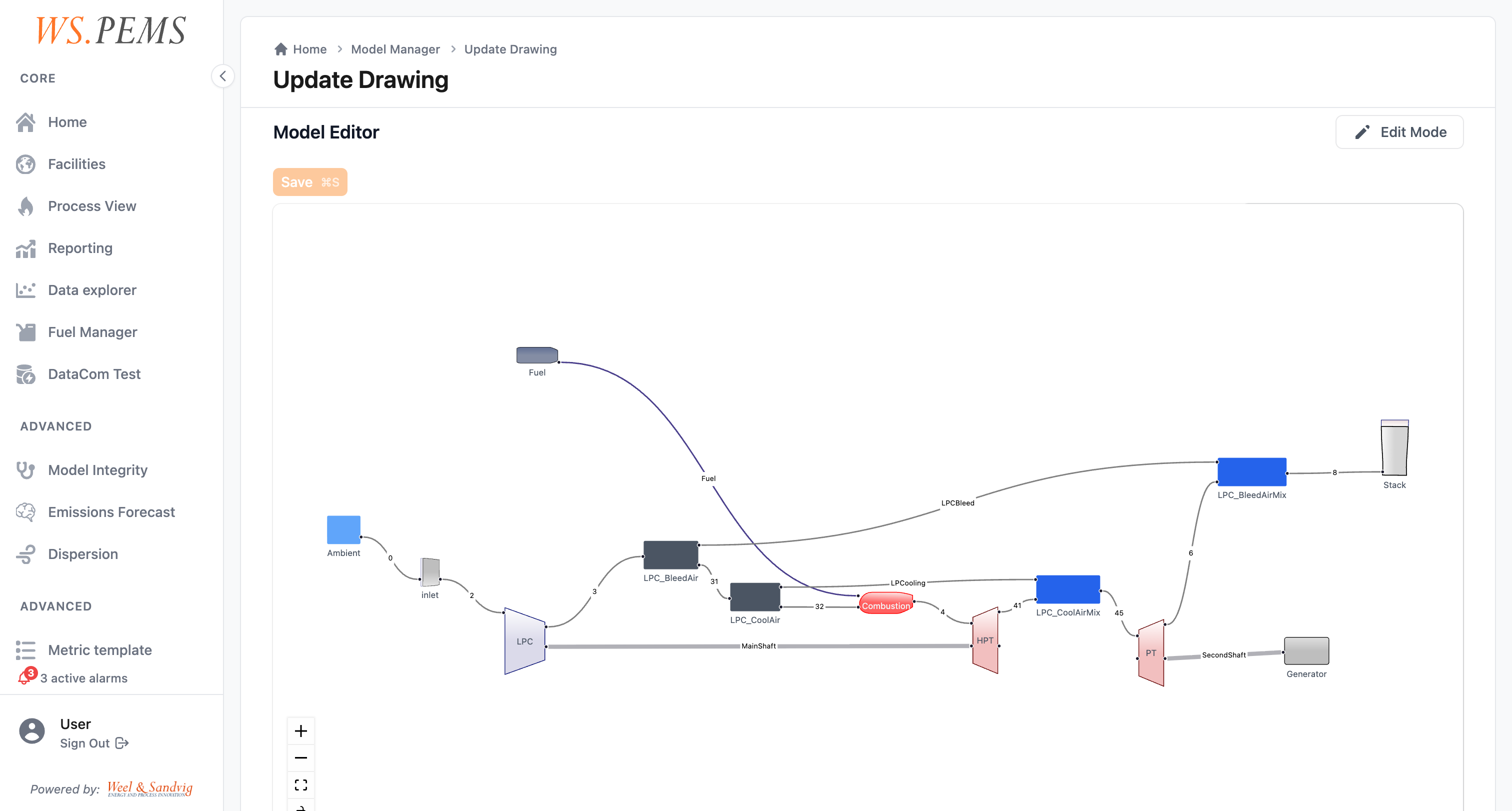
For First-Principle models, you also define the physical layout of the equipment. This layout tells the solver how mass and energy flow through the system:
- Components: the physical units in the system, such as turbines, compressors, and combustors
- Fluid streams: the flows connecting components, such as air, fuel, and exhaust
- Balance equations: the conservation laws that must hold across the system
You usually do this design step during the first site configuration. It changes only when the equipment changes.
Export or import models
You can export models as a JSON file and import them into other WS.PEMS installations. Use this to:
- Copy a working configuration from one site to another.
- Archive configurations before a large change.
- Share model setups between facilities with similar equipment.
- Click Export/Import in the Model Manager header. The Export/Import Models page opens.
- To download the models as a JSON file, use the Export Models tab.
- To load a file that you exported before, use the Import Models tab.
Calibration updates
The calibration workflow can update a model with calibrated parameters. After calibration, click Update Model config in the workflow. This saves the calibrated parameters in the model configuration. Thus the model follows the real instrument behavior over time.
Model types
WS.PEMS has four types of calculation models. The correct type depends on the equipment, the available data, and the best way to describe the emissions at your site. How emissions are calculated explains the models in full.
First-Principle
Physics-based models that use thermodynamic laws: mass balances, energy balances and combustion chemistry. These models show how the equipment works. They are a good choice for:
- Gas turbines
- Boilers
- Combustion equipment of all kinds
First-Principle models include an optimization solver that reconciles several sensor inputs. Real instruments have measurement uncertainty and redundancy. The solver finds the set of values that best agrees with the physical equations for all measurements at the same time. This gives more reliable emission values than one sensor alone. See First-principle models and reconciliation.
ONNX
Import a trained machine learning model in ONNX format. Use this option when you already have a trained model or cannot use a physics-based model.
Custom
Calculation plugins for the needs of one site. Custom models cover special calculations that a general framework does not cover, for example:
- Gas turbine CO, methane, and NOx estimates
- Flare combustion efficiency
- Process-specific emission factors
Your system administrator or implementation team configures these during site setup.
Simple
A Simple model uses the values from its input configuration as outputs. Configure formulas in the inputs when you need calculated outputs.