Workflow Manager
The Workflow Manager is the screen where you start and follow the quality assurance workflows of your emission sources. To open it, click Calibration workflows in the Models & calibration group of the menu. You must have the SuperAdmin role.
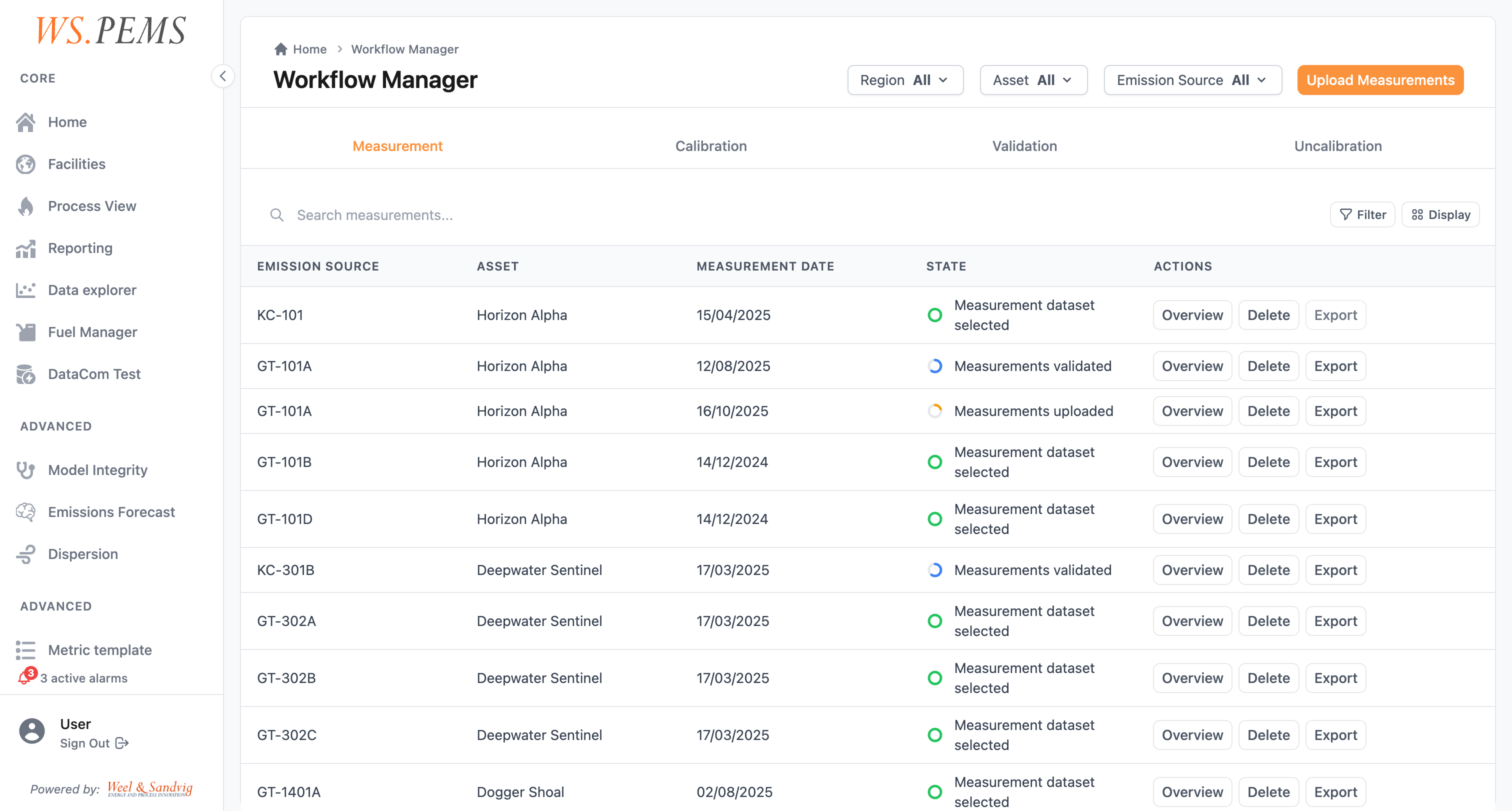
The tabs
The Workflow Manager has one tab for each workflow type, and one tab for imported campaigns:
| Tab | What it lists | Button to start | Steps |
|---|---|---|---|
| Measurement | Reference measurement datasets | Upload Measurements or Import from WS.Project | Measurement workflow |
| Calibration | Calibrations of a pipeline | Start Calibration | Calibration workflow |
| Validation | Relative accuracy test audits (RATA) | Start Validation | Validation workflow |
| Uncalibration | Uncertainty for sources without their own calibration | Start Uncalibration | Estimate uncertainty without a calibration |
| Imported campaigns | Measurement campaigns imported from WS.Project | None. You import campaigns from the calibration workflow. |
Use the scope selector at the top of the screen to show the workflows of a different scope. On each tab, filter the list by asset or emission source, or search it. Each row has three actions:
- Overview opens the workflow page.
- Export shows the measurement values and process values of the workflow, and exports them.
- Delete removes the workflow.
How the workflows fit together
The four workflows use the results of each other:
- A measurement workflow prepares the reference data.
- A calibration uses one measurement campaign or more to fit the model and compute its uncertainty.
- A validation belongs to one calibration. It uses a measurement to test that calibration.
- An uncalibration uses the calibration of a similar emission source to give an uncertainty to a source that has no measurements of its own.
Why the steps have a fixed order
Each workflow is a state machine. The system records the step that the workflow is at. It accepts only the action that is permitted at that step. If you try an action out of order, the system shows an error and does not change the workflow.
This gives three results:
- You cannot skip a step by mistake.
- The system has all the data that it needs before it computes a result.
- The audit trail shows the actions in the order in which they occurred.
You can open an earlier step to look at it. Click Previous in a step, or click the step in the step list.
Steps that run in the background
Some steps take a long time, for example the model calibration and the uncertainty computation. The system runs them as background jobs. You can leave the page while a job runs. Open the workflow again later to see the result. Progress and errors also show in the notifications.