Overview and dashboard
After you sign in, WS.PEMS opens Overview. Overview is the first item in the Operations group of the main menu. It shows your assets on a map, an emissions summary and the active alarms.
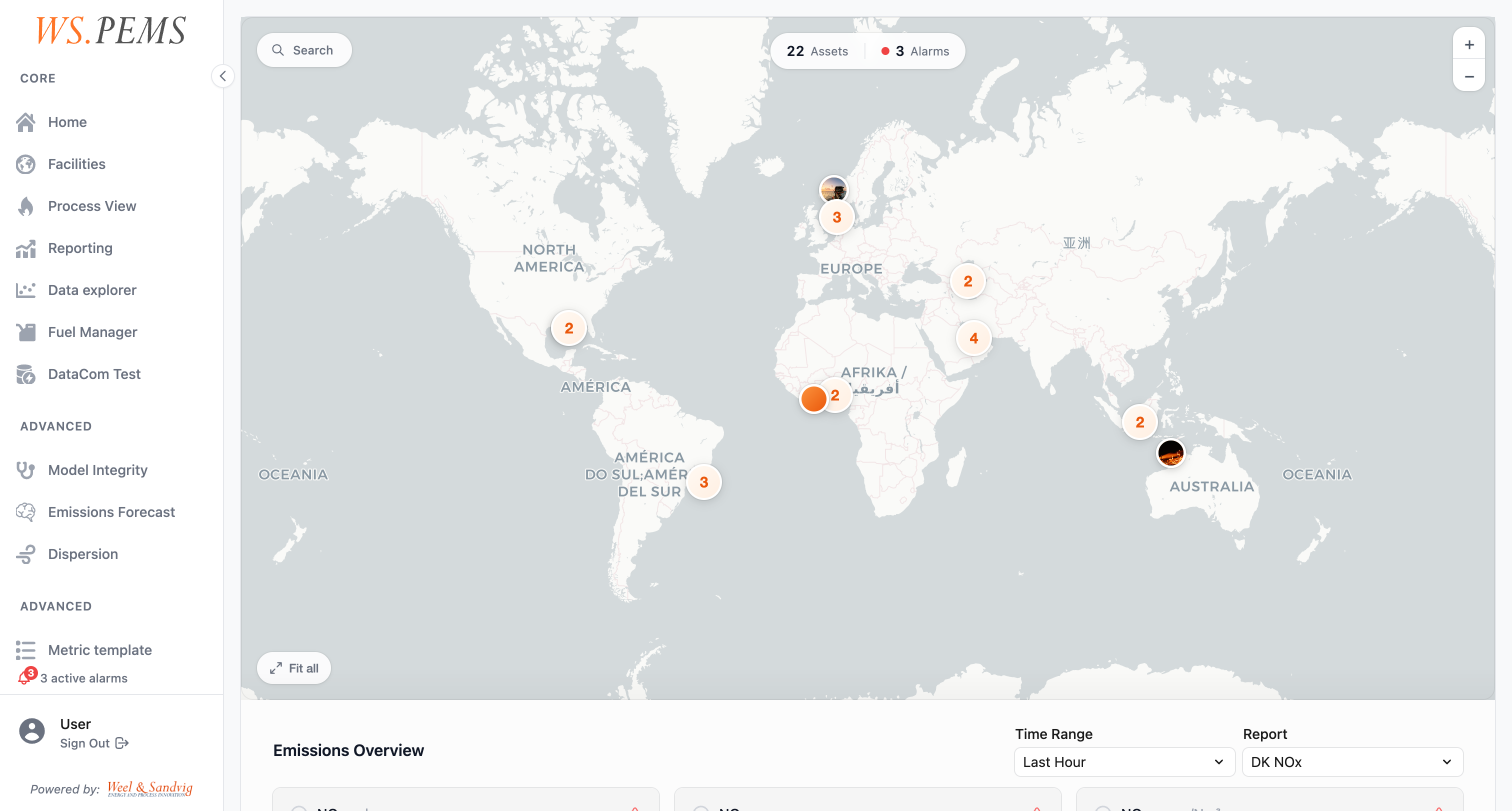
Map
The map shows the location of each asset. Each asset has an orange marker. The marker colour does not show a status. When assets are near each other, the map shows one marker with the number of assets.
Use the search field on the map to find an asset by name.
Above the map, a bar shows the selected region, the number of emission sources and the number of alarms. Click the alarm count to open the Alarms page.
Asset panel
Click a marker to open the asset panel on the right side of the map. The panel shows:
- The asset name and its location.
- The emission sources of the asset. A green dot shows that the source has live data. A gray dot shows No live data. Click an emission source to open its Process View.
- View facility details, which opens the facility page of the asset.
Use the links at the bottom of the panel, or the left and right arrow keys, to go to the previous or next asset in the region.
Switching regions
Click the region name in the bar above the map. Select a region, or All Regions. The emission source count and the emissions overview then show only that region. The map continues to show all assets. The page keeps the selected region in the ?region= parameter of the page address.
Emissions overview
Below the map, the Emissions Overview section shows emission values for the region. Use the Time Range, Report and Regime fields to select the values.
Active alarms
The Active Alarms list at the right shows up to five open alarms. Click View all to open the Alarms page (SuperAdmin only). See Respond to alarms for the alarm categories and how to respond.
Emissions Dashboard
The Emissions Dashboard (/dashboard) is not in the main menu. Open it with its address. It shows Critical Metrics, an Asset Overview map and Detailed Metrics. The metric templates of your installation set which values the metrics show. Use the Time Range, Report and Regime fields at the top of the page to select the data. The page reads the region from the ?region= parameter of the page address.
Updates
The pages update automatically. You do not need to refresh the page. Process values, status and alarms update every 30 seconds.