Respond to alarms
Open Alarms to see the alarms of your emission sources and to respond to them. WS.PEMS raises an alarm when it finds a condition that needs operator attention. Some alarm categories need operator action before the alarm closes.
Before you start
- To open the Alarms page, you must have the
SuperAdminrole. See Find a screen. - All roles see the Active Alarms list on the Overview page.
Open the alarm list
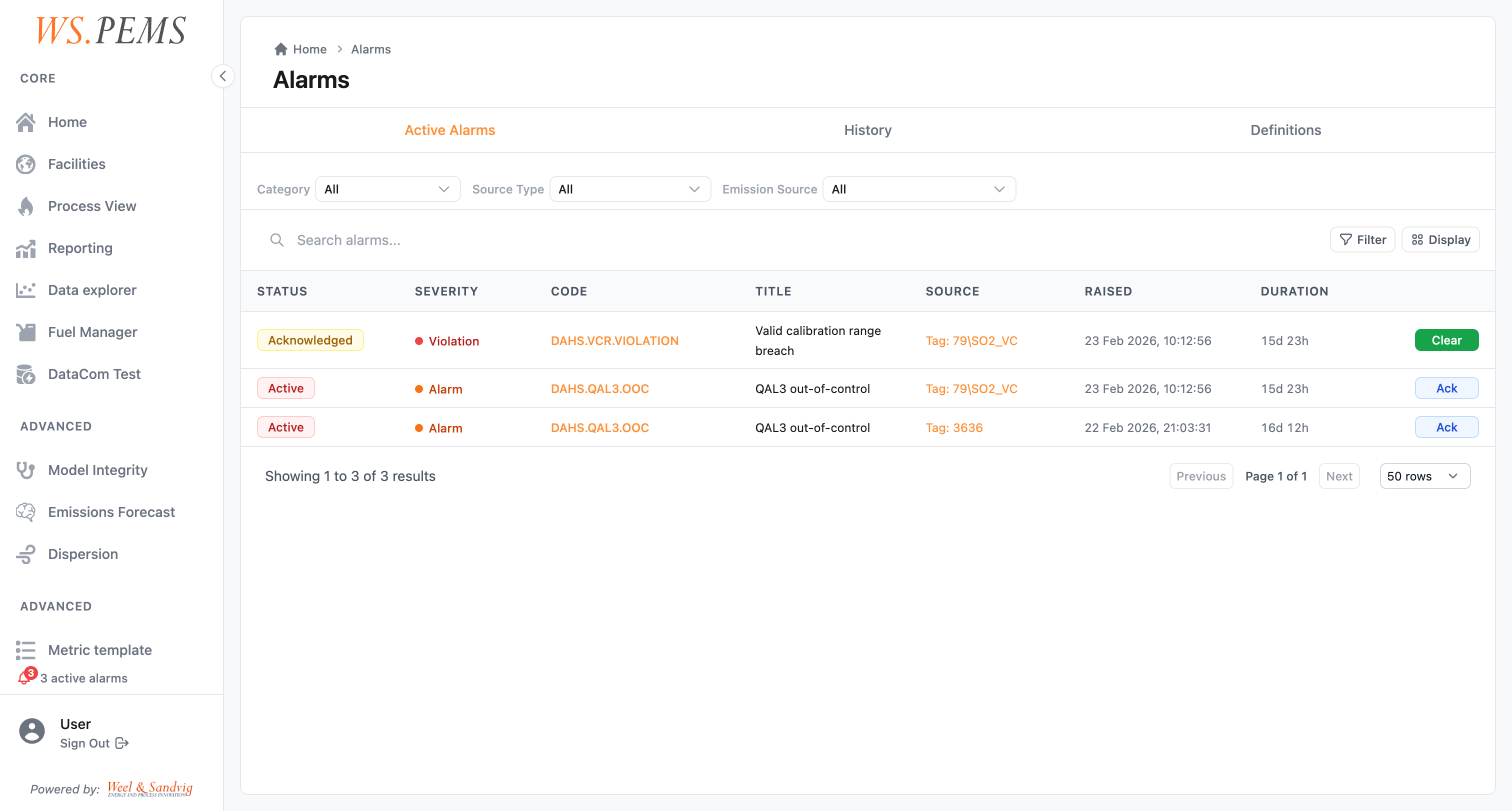
Open Alarms from the main menu, or click View all in the Active Alarms list on the Overview page.
The Alarms page has three tabs:
- Active Alarms: the open alarms. You can filter by Category, Source Type and Emission Source.
- History: all alarms, also the closed ones. This tab has no filters.
- Definitions: the alarm codes and their settings.
Respond to an alarm
Examine the alarm
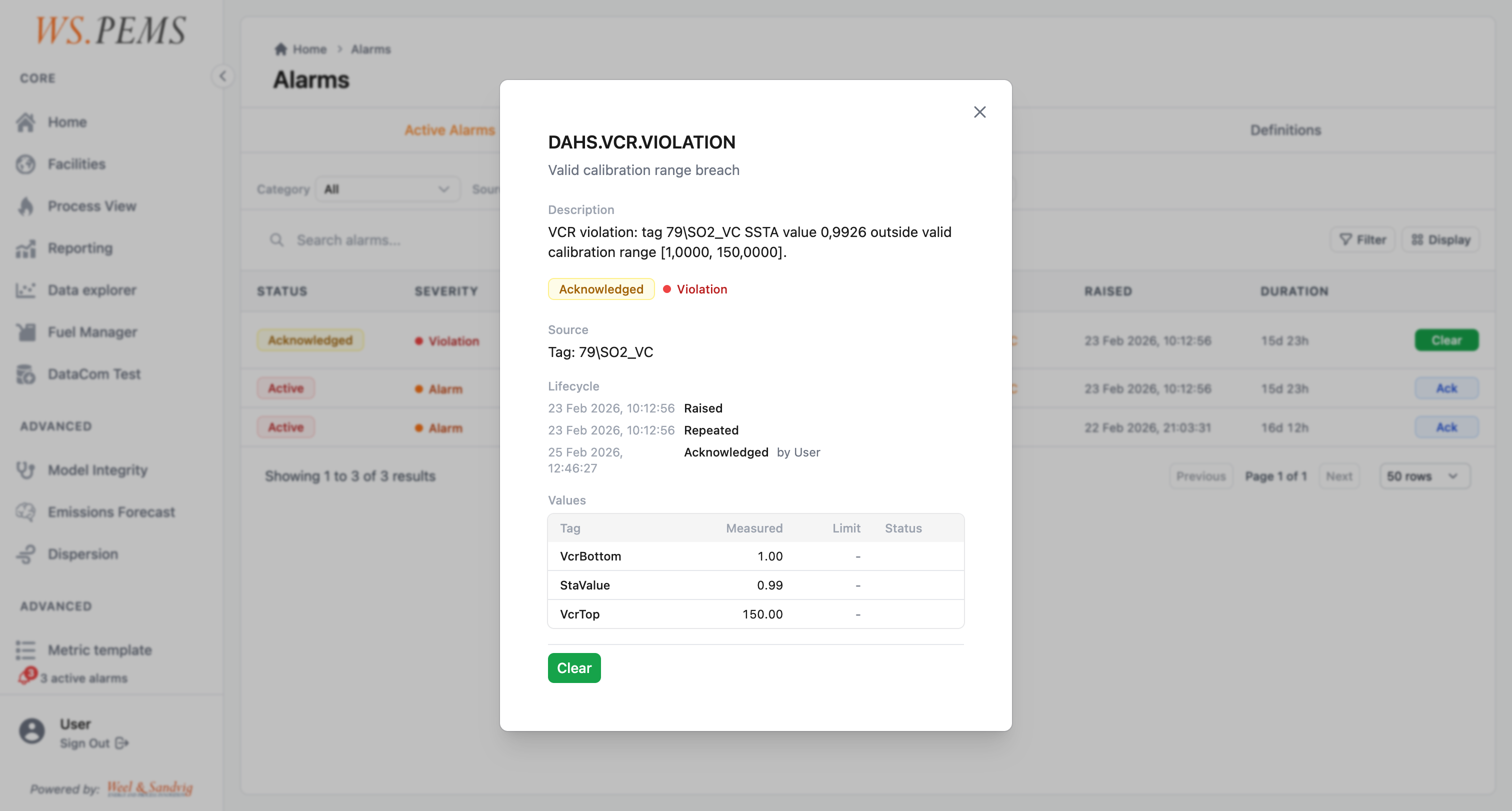
- On the Active Alarms tab, click an alarm in the list. The detail view opens.
- Read the details:
- The alarm category, code, and description.
- The asset and emission source it relates to.
- The value snapshot captured when the alarm was raised.
- The full event history for this alarm (all state transitions and notes).
Add a note
Before or during acknowledgment, you can add a note to the alarm. Record what you observed or what action you took. Notes become part of the permanent alarm record.
Acknowledge the alarm
- In the alarm detail view, click Acknowledge. The Acknowledge Alarm dialog opens. The Operator field shows your user name.
- Optional: type a note in Note (optional).
- Click Acknowledge in the dialog.
The message "Alarm acknowledged" shows. The alarm changes to the Acknowledged state.
Clear the alarm
- After you acknowledge the alarm, click Clear in the alarm detail view. The Clear Alarm dialog opens.
- When the condition has ended, select Clear condition met. A latched alarm (Alarm or Violation) cannot be cleared before its clear condition is met.
- If the dialog shows Responsible Role (required), type the role, for example
Plant Operator. - If the dialog shows Operator Note (required), type the note.
- Optional: type a note in Clearance Note (optional).
- Click Clear Alarm. The button stays unavailable until you complete the required fields.
The message "Alarm cleared" shows. The alarm changes to the Cleared state.
Sign off a violation
After a violation is cleared, a responsible person signs it off. This step confirms that the event was examined and that the corrective actions are done or recorded.
- In the alarm detail view, click Sign Off. The Sign Off Alarm dialog opens. The Signed Off By field shows your user name.
- Optional: type the role in Responsible Role. If you leave it empty, WS.PEMS keeps the role from the clear step. If that is also empty, it records your user name.
- Optional: type a note in Note (optional).
- Click Sign Off in the dialog.
The message "Alarm signed off" shows. The event history records the sign-off.
Result
An alarm is complete when it is cleared. A violation is complete when it is signed off. The History tab keeps all alarms, also the closed ones. The event history of each alarm records every step, with a timestamp and the name of the user. See Alarm lifecycle.
Common problems
| Problem | What to do |
|---|---|
| The condition ended, but the alarm is still open. | Alarm and Violation latch. Acknowledge the alarm, then clear it. See Latching. |
| The alarm cannot be cleared. | Acknowledge the alarm first. For a latched alarm, select Clear condition met. Complete Responsible Role (required) and Operator Note (required) if the dialog shows them. |
| The same condition occurred again, but no new alarm shows. | The system logs the repeated occurrence as an event on the existing alarm. Open the alarm and read its event history. |
| An expected alarm does not show during start-up or shut-down. | Some alarm types are suppressed in these states. See Suppression during start-up and shut-down. |
How alarms work
The alarm codes follow PEMS (Predictive Emissions Monitoring System) and DAHS (Data Acquisition and Handling System) compliance requirements. A code starts with an area, for example PEMS.SV.L1 (PEMS sensor validation, level 1) or DAHS.COMMS.LOSS (data acquisition and handling system, communication loss).
When WS.PEMS finds a monitored condition, it raises an alarm and records it.
Alarm categories
The four alarm categories differ in severity and in the response that they need.
| Category | Label and colour | Latches? | Requires sign-off? |
|---|---|---|---|
| Information | Info, gray | No | No |
| Warning | Warning, yellow | No | No |
| Alarm | Alarm, orange | Yes | No |
| Violation | Violation, red | Yes | Yes |
The system clears some alarms when the condition ends. For example, DAHS.COMMS.LOSS clears when data comes back, and PEMS.MIT.FAIL clears when the next model integrity test passes. You clear all other alarms with the Clear action. See Clear the alarm.
Information
Information events record something that occurred in the system. They do not latch.
Example: DAHS.TIME.CHANGE, a system clock correction of more than five seconds.
Warning
Warnings show a condition that you must know about. They do not latch.
Examples:
PEMS.SV.L3: a tag input deviates beyond its tolerance.DAHS.POWER.RESTART: the system found a restart of a DAHS subsystem.
Alarm
An alarm shows a condition that an operator must acknowledge. Alarms latch. An operator must acknowledge the alarm before it can be cleared.
Examples:
DAHS.COMMS.LOSS: no data from a configured source after the site timeout.PEMS.SV.L1: a tag input failed its health check (out of range, flat line or not available).PEMS.MIT.FAIL: the PEMS model failed its integrity test.EMIS.ELV.EXCEED: a validated average is more than the permit emission limit.EMIS.LTA.INVALID: the long-term average has too few valid values.
Violation
A violation is the most serious category. Violations latch, as alarms do. A responsible person must also sign off the violation after it is cleared. The sign-off records that a responsible person examined the event.
Examples:
DAHS.VCR.VIOLATION: the weekly or multi-week valid calibration range is exceeded.PEMS.RECON.>10D: reconciliation was active for more than ten consecutive days.
Alarm lifecycle
An alarm moves through these stages, from detection to resolution:
- Raised: the system finds a condition and makes the alarm.
- Active: the alarm is open. It shows on the Active Alarms tab.
- Acknowledged: an operator examined the alarm and clicked Acknowledge.
- Cleared: an operator clicked Clear, or the system cleared the alarm when the condition ended. For Alarm and Violation, the clear condition must be met.
- Signed Off (violations only): a responsible person clicked Sign Off. This completes the compliance record.
All stage transitions are recorded with a timestamp and the name of the user who took action. This full history is available for audit purposes.
Latching
Alarm and Violation categories latch. This means:
- After the system raises the alarm, the alarm stays open until it is acknowledged and cleared. This is also true when the condition ends.
- If the same condition occurs again while the alarm is active, the system logs it as an event on the existing alarm. It does not make a new alarm.
This prevents alarm floods during a fault and keeps the alarm list short.
Suppression during start-up and shut-down
The system suppresses some alarm types while an emission source is in a recognized non-normal operating state, such as start-up or shut-down. In these states, some values are out of range as expected.
When suppression is active, the system records that the condition occurred. It does not show the condition as an alarm that needs action.
Value snapshots
When WS.PEMS raises an alarm, it captures a snapshot of the relevant measurement at that moment. The alarm record includes:
- The measured value that triggered the alarm.
- The limit or threshold that was exceeded.
- The engineering unit, for example mg/Nm³, % or hours.
The system keeps this snapshot permanently. You can examine the trigger conditions later, also after the process values have changed.