Trace a reported value
Use the lineage view to trace a value in a compliance report back to the per-minute records and the pipeline runs that produced it. Report data lineage explains the structure of the chain and why it has this shape.
Before you start
- All roles can open Reports.
- Generate the report first. See Generate a report.
Open the lineage view
- Open a compliance report.
- Click a value in the report table.
The lineage modal opens for that report cell.
The lineage modal
The modal has two panels:
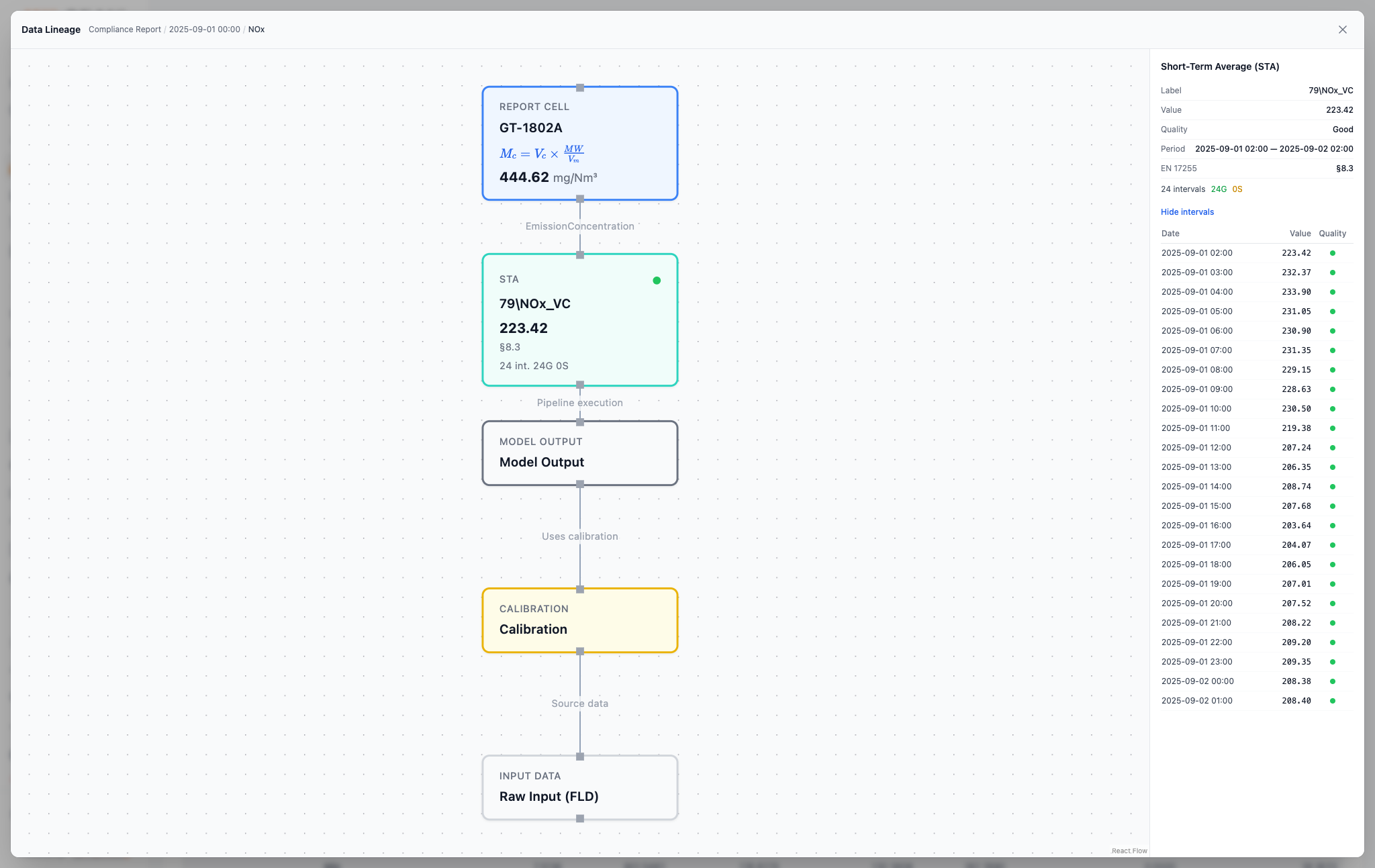
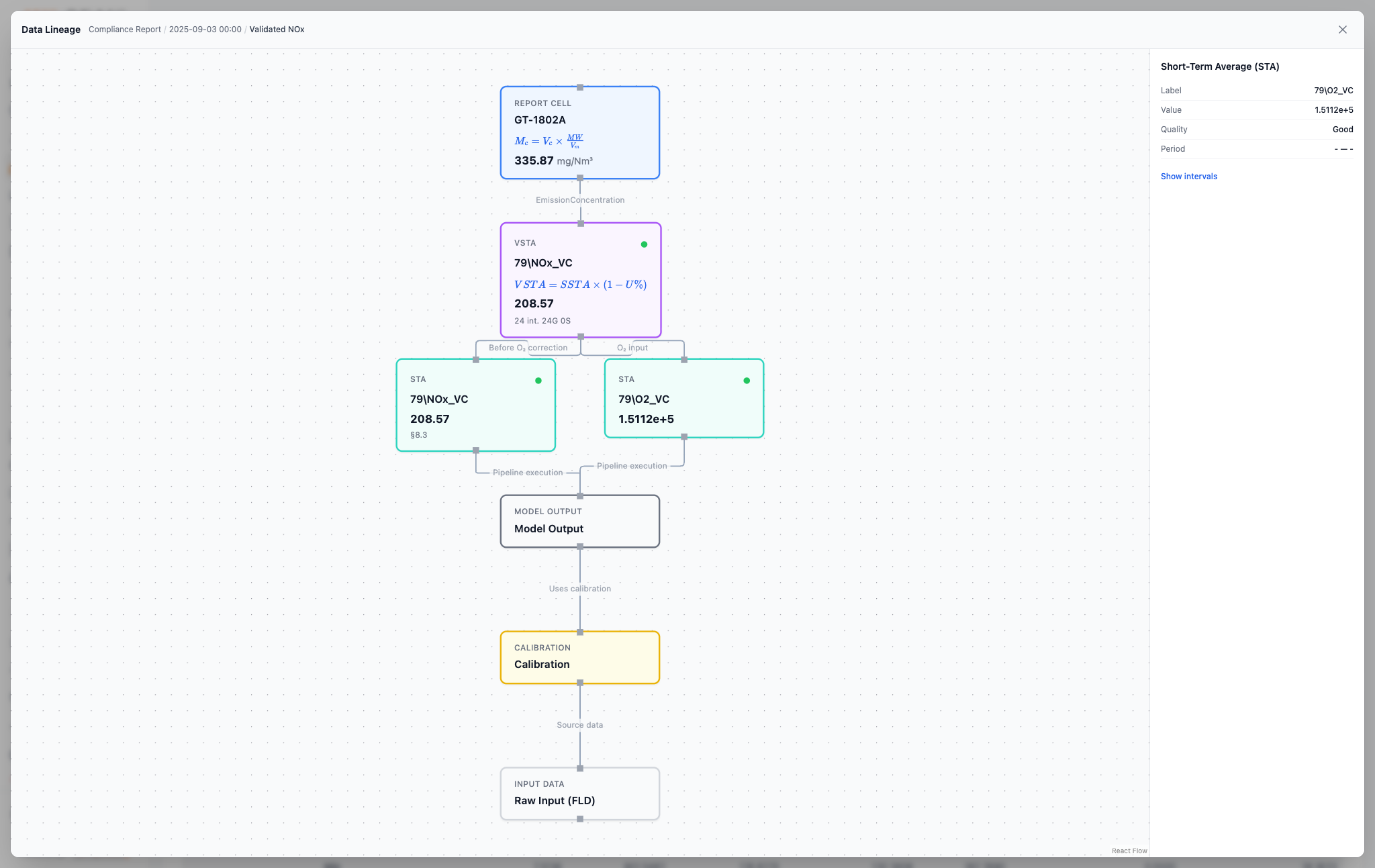
- The left panel shows the computation tree, from the report cell at the top to the source data below it. Click a node to select it.
- The right panel shows the details of the selected node: its values, its formula with the actual numbers, and its quality.
Drill down to the source of a value
- Read the quality summary on each STA node. It shows, for example, how many values were good and how many were substituted.
- Expand the STA node of the tag that you want to examine. The tree shows its hourly intervals.
- Select the interval with the quality problem. Expand it to show the per-minute records of that hour.
- Select a per-minute record. The right panel shows every tag of that minute, so you can see if other instruments were good at the same time.
- Expand the record to show the pipeline run that wrote it, with its steps and their status.
Common uses
| Situation | What to do in the lineage view |
|---|---|
| An auditor asks about a reported value | Show the chain from the report cell to the per-minute records, with the formula and the quality at each level. |
| A reported value has an unexpected quality flag | Follow the flag down the tree to the hour and the minute where it started. |
| You want to check a formula | Select the node and read the formula with its actual values in the right panel. |
| Values shift after a calibration change | Select the calibration node to see which calibration was active for the period. |