Data Explorer
The Data Explorer lets you query, chart, and export any measurement data in the system. Use it to investigate historical trends, compare parameters across time periods, or pull raw data for external analysis. You do not need to make a compliance report.
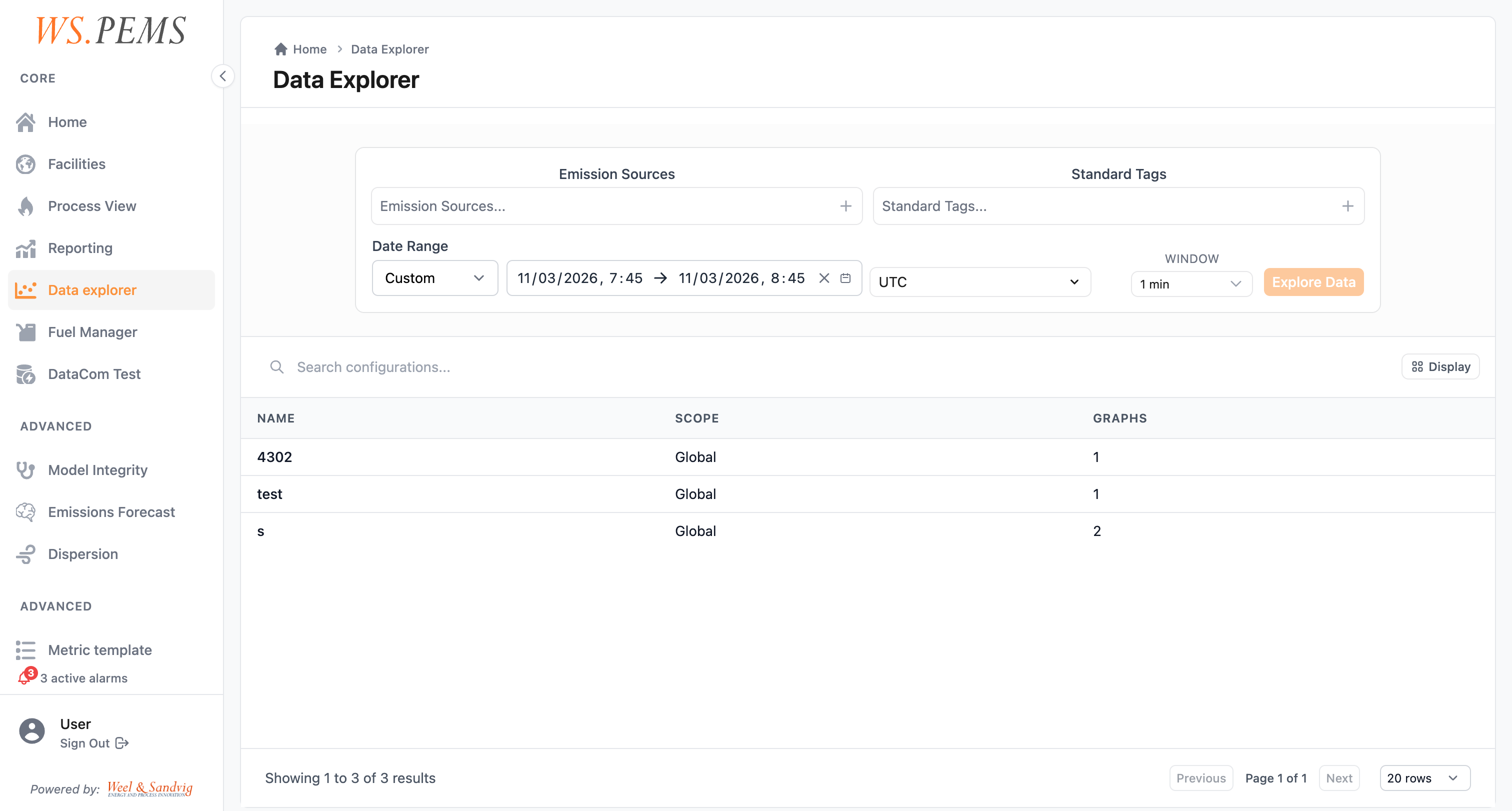
How to use the Data Explorer
- Select one or more emission sources from the source picker. You can select sources across a region if you want to compare them.
- Select the tags (measurements) you want to view. Tags represent individual measurements, for example NOx concentration, stack temperature, or oxygen content.
- Choose a time range using the date/time pickers.
- Choose an aggregation window to control how data points are grouped (see below).
- The chart and data table update automatically with your results.
Aggregation windows
Raw data points are grouped into intervals before being displayed. Choose the window that matches the resolution you need:
| Window | Use it for |
|---|---|
| 1 min | Short-term troubleshooting, fine detail |
| 10 min | Operational monitoring |
| 1 hour | The usual compliance aggregation level |
| Day | Daily summaries |
| Month | Monthly overview |
Selecting a finer window over a long time range will produce a large number of data points. If your query is slow, try increasing the window size or narrowing the time range.
Chart visualization
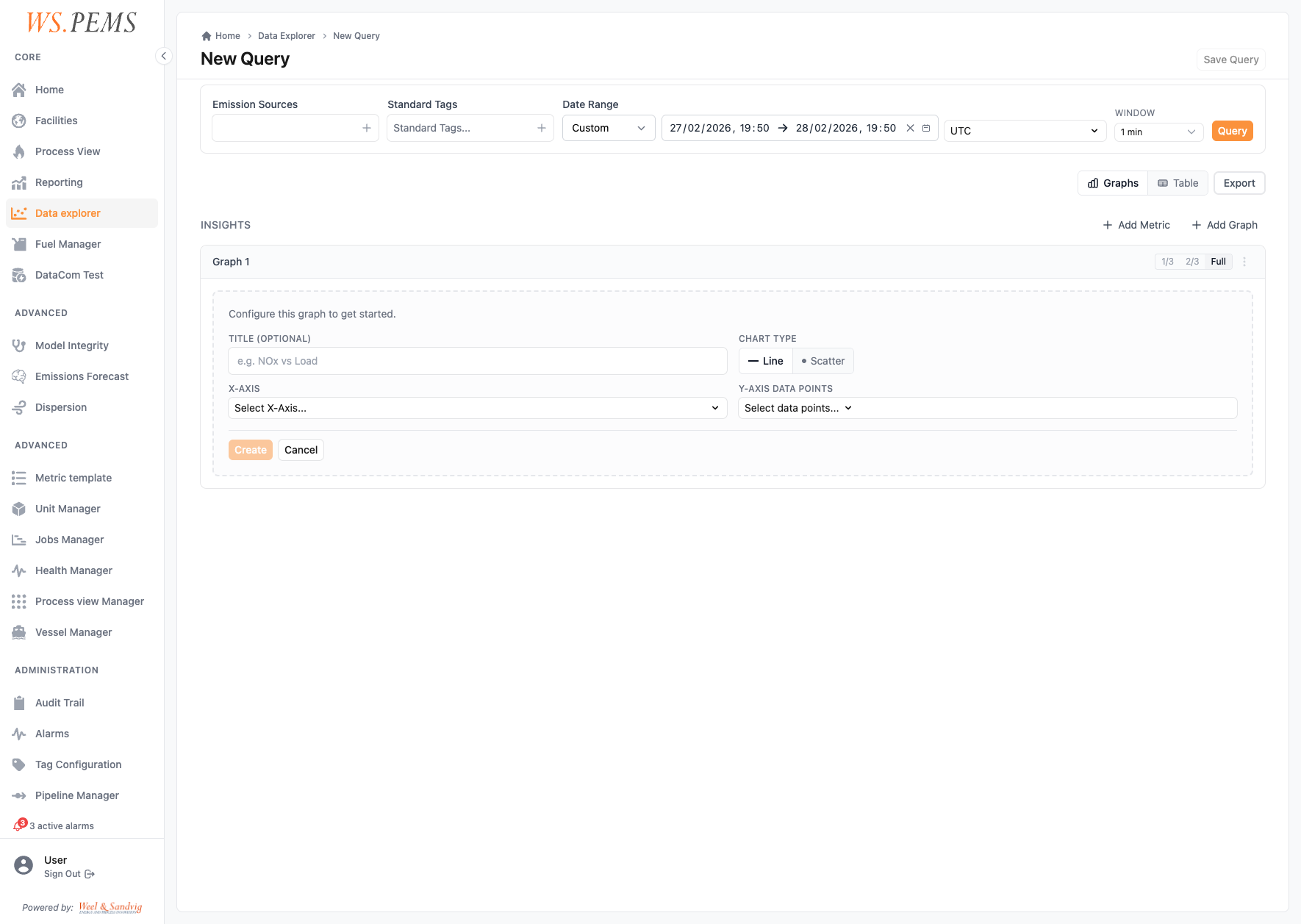
Results are displayed as interactive charts. You can:
- Hover over any data point to see its exact value and timestamp
- Zoom in on a specific time range by clicking and dragging on the chart
- Toggle individual tags on or off using the legend
When a measurement has uncertainty data, the chart and the data table show it with the value.
Reconciliation data
If reconciliation data has been produced for a source and time period, it is integrated automatically into the Explorer view. Reconciled values are indicated so you can distinguish them from unreconciled readings.
Timezone handling
Use the timezone selector to display timestamps in your local time or in the timezone relevant to your facility. The system stores all data in UTC and converts to your selected timezone for display. You do not need to adjust your time range manually when switching timezones.
Saved configurations
If you frequently query the same combination of sources, tags, and time window, you can save the configuration for quick access later.
- Saved configurations are per-user: they are private to your account.
- They are scoped to the regions you have access to, so you will only see configurations that match your current access.
To save a configuration, set up your query and click Save. Give it a name that you can identify later. To keep the old configuration and save a copy, click Save as new.
Exporting data
To export the current query results for use in external tools:
- Run your query as normal.
- Click the Export button above the data table. The export options open.
- In Format, select CSV or XLSX.
- Optional: change the Filename.
- Optional: select Show uncertainty. This option shows only when the data has uncertainty values.
- Examine the Preview.
- Click Download.
The browser downloads a CSV or XLSX file with the name that you set. The file contains the timestamps and the values of your query. When you selected Show uncertainty, it also contains the uncertainty values.